
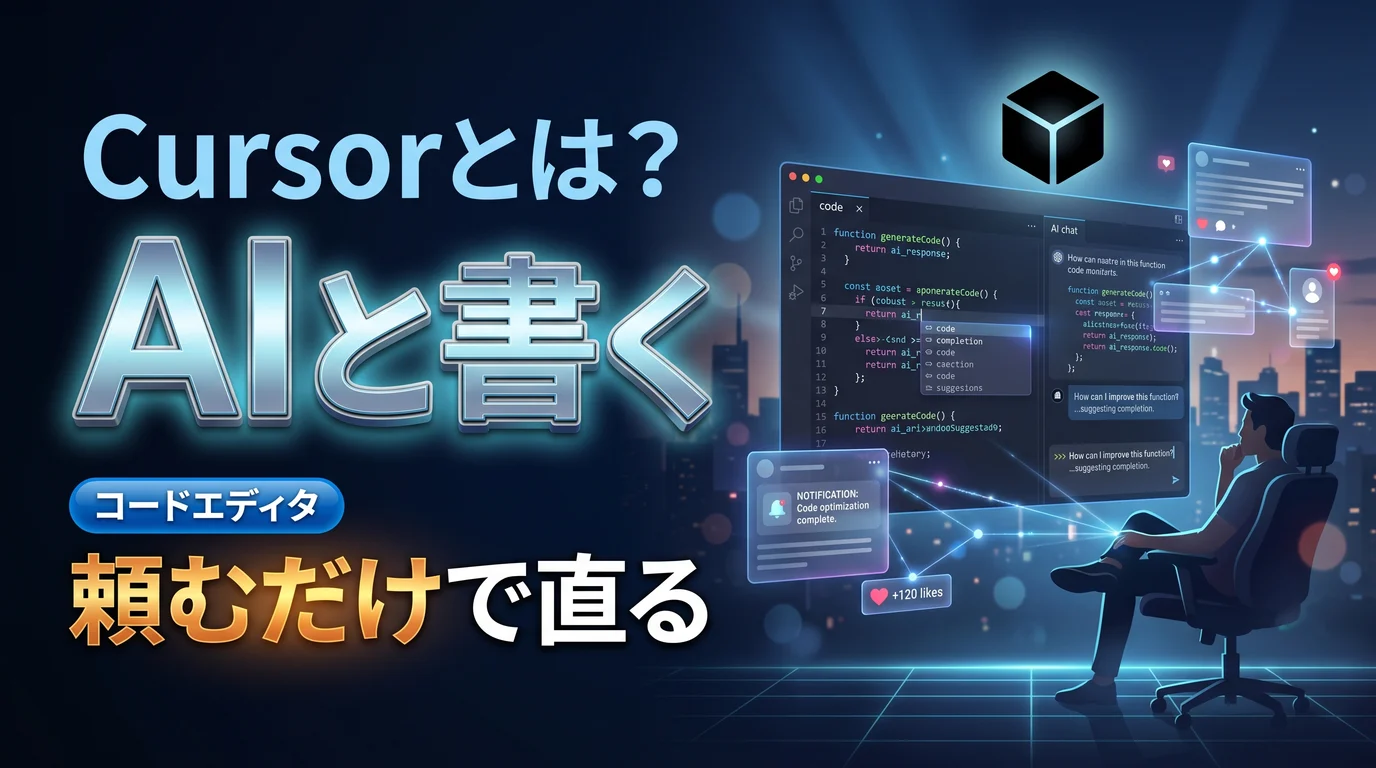
What Is Cursor? How to Use the Editor That Lets You Write Code with AI, Plus Pricing
This article was translated from Japanese and was originally written for readers in Japan.
You have something you want to build, but your hands stop when it comes to writing the code. You freeze in front of an error message, and while you're looking things up, another day passes with no progress. Have you had that experience in indie development or while making a small tool? This article covers Cursor, an editor where you write code while talking with AI and can even hand off the fixes: what it can do, how far you can go for free, and how it helps with indie development and getting the word out.
What Is Cursor? An Editor Where AI Writes Alongside You#
Cursor is a tool that deeply integrates an AI assistant into an editor for writing code. It's based on the widely used editor VS Code, so its look and feel should be familiar to many people.
Its hallmark is that when you ask in Japanese (or any plain language), "fix this part like this," the AI rewrites the code for you. Having read the context of the whole file, it adds new features, fixes bugs, and completes the line you're in the middle of writing by predicting ahead. Because the AI drafts most of the code from nothing more than instructions in natural language, the burden of typing everything in from scratch drops dramatically.
Main features#
- Editing via chat: Tell it in words what you want to do, and the AI rewrites the relevant part
- Predictive completion (Tab): Predicts the code you're likely to write next and suggests it in one go
- Agent features: The AI carries out changes spanning multiple files with a degree of autonomy
- Code explanation: Have it explain on the spot what existing code is doing
How Much Does It Cost? You Can Start on the Free Plan#
As of June 2026, Cursor has a free Hobby plan and paid plans such as Pro at $20 a month. Even the free plan includes a certain number of AI assists every month, which is enough for a first experience.
On the Pro plan ($20 a month), the request allowance for high-performance AI models expands considerably and wait times get shorter. There are also higher-tier plans and special terms for students. For hobby development or learning, the free plan, or Pro if that falls short, should be enough in most cases. Plan details and allowances are updated often, so check the official site for the latest.
How to Use It for Indie Development and Getting the Word Out#
Cursor works best for people for whom "code is the means, and the thing they want to build comes first".
- Building small tools: Shape simple scripts and pages that support your posting, talking it through as you go
- Someone to ask about errors: Paste in the error you're stuck on as is and ask for the cause and the fix
- Building while learning: Have the AI explain what the code it wrote means, and move forward with understanding
That said, it's important not to trust the AI's output completely as is. Even when something runs, it may differ from what you intended, so check the content as you use it. Once you let go of the assumption that "I have to write everything myself," the hurdle to getting hands-on drops a great deal.
Summary#
Cursor is an editor where you write code while talking with AI and can even hand off the fixes. There are three key points: ask in words and the AI rewrites the code, it feels close to the familiar VS Code, and you can try it starting from the free plan. The less comfortable you are with code, the lighter that first step becomes. Start with something small you want to build, and try writing it together with AI.
Even if you can build the tool, writing a post each time to tell the world about it takes a different kind of effort. One choice is to leave just that rewriting for each platform to Toukoukun. Register what your product stands for once, and AI writes tailored text for X / Instagram / Threads / note. If you like, take a look at the dashboard.