What Is Recraft? How to Use the Design AI That Generates Vector Images, Plus Pricing
This article was translated from Japanese and was originally written for readers in Japan.
AI-generated images look great, but then at the delivery stage you want to "tweak the color just a little" or "make it bigger," and you're stuck because you can't edit it after the fact. If you work with design, that frustration probably sounds familiar. Recraft is a rare design-focused AI that outputs true vectors (SVG) you can edit afterward. This article covers what it can do, how its pricing and Japanese-language support stack up, and how to use it in your content.
What Is Recraft? A Design-Focused AI That Outputs "True SVG"#
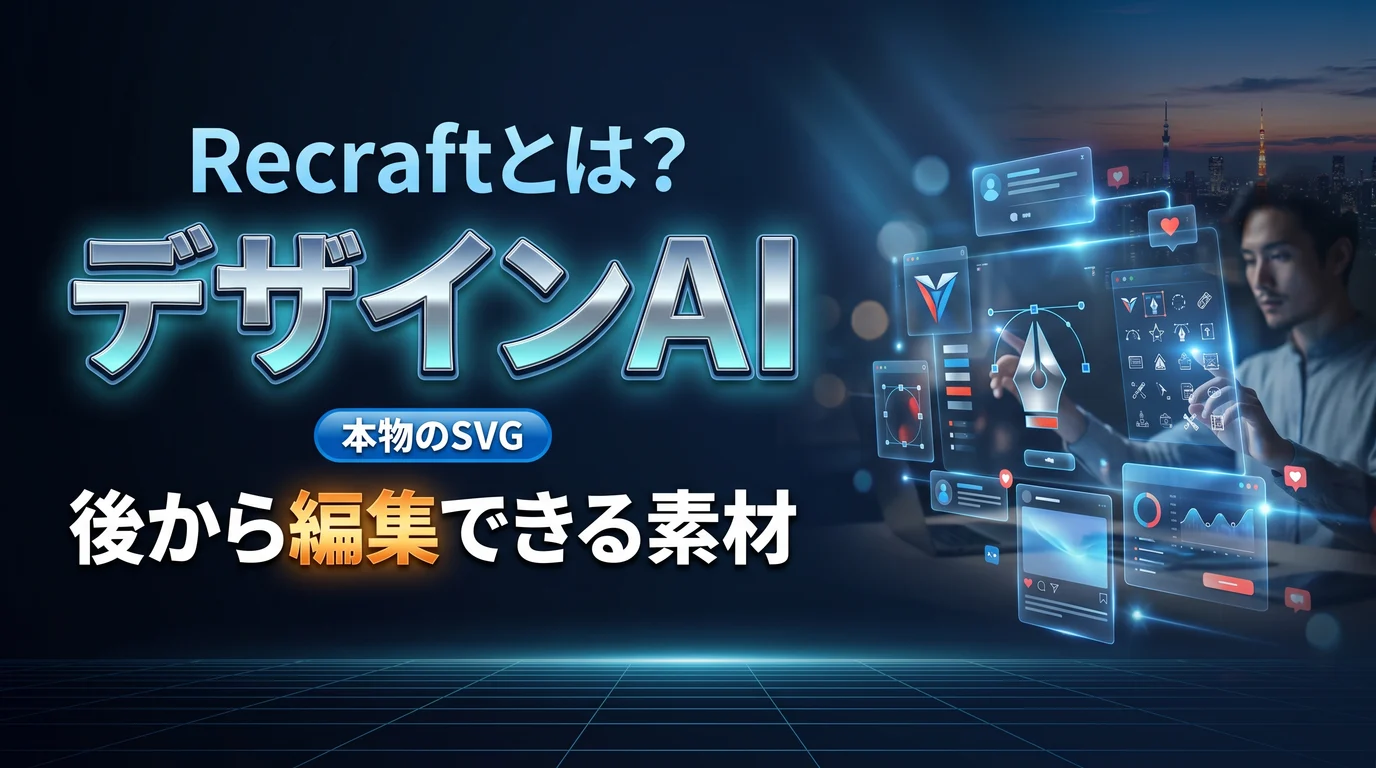
In a nutshell, it is an image AI for design whose output comes as vectors you can edit as-is in Figma or Illustrator. While many AI tools produce "SVG in appearance only," Recraft can output real paths, and that is the big difference.
Here are the main features.
- Native SVG generation: You get vectors that stay crisp when scaled up and can be edited later in design tools
- Icon set generation: Create a whole batch of visually consistent icons with matching stroke weights
- Saved brand styles: Register your own style from reference images and apply it consistently to everything you generate afterward
Pricing and Japanese Support: How Far Can You Get for Free?#
The free plan grants a small number of credits each day, but be aware that on the free tier, what you generate cannot be used commercially. If you're using it for work, a paid plan (from roughly $10 a month) is a given, and that plan comes with commercial use rights and ownership of the copyright. Credit rules and prices change often, so check the official site (this article reflects June 2026).
As for Japanese, the UI is basically in English. And rendering Japanese (kanji and kana) inside images is not something Recraft clearly claims to support, so you need to test it. It is good at Latin-script text, but if you want to put a Japanese title in an image, always check the quality yourself.
Ways to Use It for Content and Social Media#
Here are concrete ways creators can put it to use.
- Logos and icon sets: Create them in a unified style, import them into Figma, and edit right away
- Social media banners and cover images: Mass-produce unified visuals sized for each platform
- Product mockups: Drop app screens or merchandise into mockups to use as landing page assets
- SVG illustrations and diagrams: Create figures for websites or note articles as vectors and embed them directly in code
Who It's For, and Who It Isn't#
Let's be honest about fit. For people who want to keep their brand consistent and people who create assets on the assumption that they'll edit them later, it has strengths you won't find elsewhere. It pairs well with logos and icons that you intend to "grow" over time.
On the other hand, tools like Midjourney do better at photorealistic portraits and artistic, moody expression. If you want Japanese titles in your images, the quality is unpredictable, so test it. And for professional use, a paid plan is a given. Think of it as a tool for making "well-ordered design assets" rather than "eye-catching photos," and you won't go wrong.
One thing to know before you start: on the free tier, what you generate cannot be used commercially. That is plenty for a trial, but if you plan to use it for work or a product, the safe choice is to go with a paid plan (which comes with commercial use and copyright) from the start. The more an asset becomes "the face of your brand," as logos and icons do, the more you want the rights to be properly sorted out. Choose your plan based on how those rights are handled, more than on price, and you won't regret it.
Getting Started with Recraft, and When to Use Other Tools#
The first step is simple. The flow is decide on a style → generate → export as vector and finish in your design tool.
- Lock in the style first: Save your own style from reference images and brand colors, and it will carry through consistently to everything you generate afterward. This is especially effective when you make logos or icons as a "series"
- Export as SVG: Output vectors rather than raster images, then fine-tune in Figma or Illustrator. Being able to freely change colors and sizes later is Recraft's biggest advantage
- Commercial use assumes a paid plan: If it's for work, start with a plan that includes commercial use and copyright
Here is a rule of thumb for choosing between tools. For photo-like visuals and artistic expression, Midjourney and the like; for logos, icons, and well-ordered design assets, Recraft. If banners or cover images with text are the main event, another tool that is strong at rendering text may suit you better. Once you're clear on "do I want an eye-catching photo, or a design asset I can edit?", you'll see where Recraft shines. To begin, we recommend making a few icons and getting a feel for how easy the exported SVGs are to work with.
Summary#
Recraft is a design-focused AI that outputs true vectors you can edit afterward. There are three key points: it produces SVGs you can edit in Figma or Illustrator, you can save a brand style and mass-produce consistent assets, and commercial use assumes a paid plan. It is weaker at photo and art styles and at Japanese text, but creators who want a consistent brand can rely on it. Start by trying one set of logos or icons.
Even once your visuals are in order, writing separate versions of the post copy for four social platforms is still a chore of its own, isn't it? Toukoukun is a tool where you register your brand voice once and AI writes post copy tailored to each platform. When you want to lighten the "writing" part of your posting, take a look at the dashboard.